Category: mac

  • Flickriver

    Scrolling Ad Infinitum:

    I discovered a new Flickr tool called Flickriver…
    It loads all images into one long html page, i.e. you simply scroll down to view all pictures for a tag or group:

    My contacts

    My faves

    Malawi group

    Canon ImageBrowser to FlickrUploadr:

    BTW, I’ve found a shortcut how to add photos from Canon ImageBrowser to Flickr Uploadr. In the ImageBrowser, open Preferences and add Flickr Uploadr to the list of external editing applications. Once you’ve added it, you can send images to Flickr Uploadr while in preview mode using Edit > Edit with Registered Application > Flickr Uploadr.

    Alternative to Satellite:

    I stumbled across lumis Gallery. The concept is similar to Satellite, i.e. you can host photos on Flickr and reload them on your own server within your own layout. It seems to have more features…. It requires PHP 5 and a Flickr account.

    Today’s personal faves:

    helmet required

    Bernoulli-Silo

    bridge detail

    schoggi-kuchen mit lychee glace

  • MAMP or pre-installed Apache

    For local WordPress fun, I might install this package:
    MAMP

    Although Apache is already available.

    The pre-installed Apache can be accessed like this:

    • Go to System Preferences > Internet and Network > Sharing
    • Select Personal Web Sharing or click Start.
    • Copy & paste the URL listed in the lower part of the dialog box into a browser. The corresponding HTML and image files are located in Sites.
  • Installing Tomcat on a MacBook

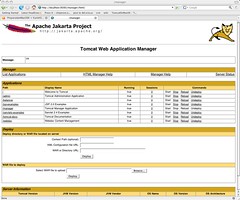
    Today I installed Tomcat on my MacBook. In order to run a website with Java servlets locally.

    Here are my non-developer notes, for my own future reference.

    To check if Java is installed, open Terminal and type:
    javac -version

    In a previous session, I had already installed the Apple developer tools, which includes JDK 1.5.

    Note: you’ll need to list the location where Java can be found:
    export JAVA_HOME=/usr

    Download and unpack the Tomcat zip files to a directory.
    Open conf/tomcat-users.xml and change the user and password settings.

    Go to your Tomcat directory and type ./bin/startup.sh

    Open a browser and type http://localhost:8080 to see a Tomcat welcome screen.

    In the final step, I modified conf/server.xml. Luckily I had my Windows setup to refer back to, or I would have been really lost at this stage…

    tomcat

  • White Space

    (half-geek plans)

    Maybe I’ll try out this WordPress theme over the weekend:
    Whitespace WordPress Theme

    And I’ve still got to figure out how to install and configure a Tomcat on a Mac.

    And I still want to install MacFuse and MacFusion